
Talk to an expert
Portal
Talk to an expert
  • Home
  • Products
    • Logic+ Software
    • SMART Technology
    • Documentation
  • About
  • Contact
  • Home
  • Products
    • Logic+ Software
    • SMART Technology
    • Documentation
  • About
  • Contact

Introduction

3
  • Logic+ Introduction
  • Quick Start Guide
  • Installation

Schedule Manager

4
  • Schedule Manager
  • Enterprise Project List
  • List of Schedules
  • Project Wizard

Schedule Viewer

5
  • Schedule Viewer
  • Schedule Viewer Actions
  • File History
  • Activity History
  • Activity Details

Analytics

2
  • Analytics Reports
  • ChartViewer Options

Delay Analysis

5
  • Delay Analysis
  • Traceback
  • Traceback Candidates
  • Delay Analysis Chart
  • Delay Analysis Dashboard

Settings

2
  • Traceback settings
  • Licence Information

Training Videos

4
  • Logic+ Overview
  • Schedule Manager
  • Schedule Viewer
  • Delay Analysis
  • Home
  • Docs
  • Logic+
  • Schedule Manager
  • Enterprise Project List
View Categories

Enterprise Project List

1 min read

Enterprise Project List #

Use the Enterprise Project List to structure your projects and manage them within Logic+. You can also open projects for viewing and analysis.

➡️ Navigation: Bottom tab bar > Enterprise Project List

  • Create a Hierarchical Structure: Organize your projects into a clear, hierarchical structure that mirrors the EPS used in your scheduling tool.
  • Add/Remove EPS Nodes: You can add or remove nodes within the EPS as needed to customize your project structure.
  • Manage Projects Within Nodes: Add or remove individual projects under each EPS node to keep everything organized.
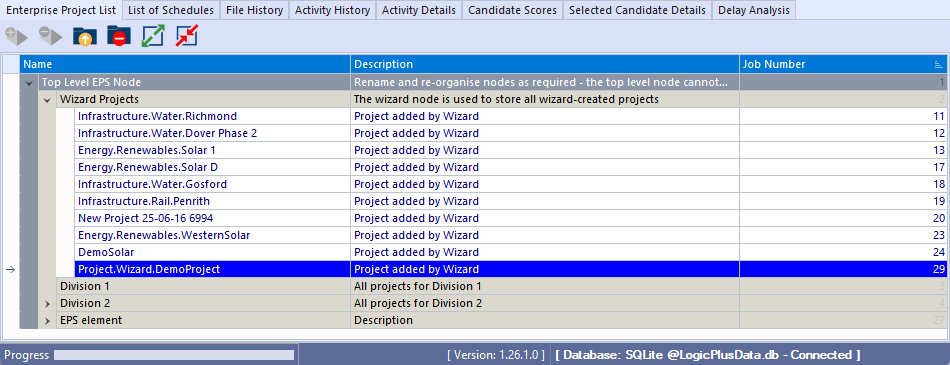
💡This is used to manage the structure of projects within Logic+ only. Use List of Schedules to add, remove and load the schedule files for a project.

💡You can adopt your Enterprise Project Structure (EPS) to align with your schedule management processes. This is not a hierarchy within Logic+ but you can represent the EPS using a text string. Eg., Infrastructure.Water.Richmond.


Open Project #

Use the Open Project menu item to open an existing project.

➡️ Navigation: Bottom tab bar > Enterprise Project List

👉 Highlight an existing project in the Enterprise Project List

👉 Click Open Project to load existing project

👉 Change selected baseline and schedule files to include in analysis in List of Schedules tab


Still stuck? How can we help?

How can we help?

Updated on August 26, 2025
Table of Contents
  • Enterprise Project List
  • Open Project

Head Office

Level 7, 303 Coronation Drive
Milton QLD 4064 Australia

Home     |     Logic+     |     SMART     |     Documentation     |     Privacy Policy     |     Terms & Conditions

© 2025 LWARE Pty Ltd  |  Digital Marketing by Focused Marketing

  • Follow