
List of Schedules #
After opening a project, use List of Schedules to add, remove and load schedule files for analysis.
- Logic+ supports importing most schedule file formats, including XER and MPP. You can add files or folders.
- You can also open schedule files from the same project that are in different formats.
Select schedule for analysis #
Use the schedule details displayed to decide which files to include in analysis.
➡️ Navigation: Bottom tab bar > List of Schedules
👉 Nominate Schedule Files: Choose which files to include in the traceback analysis and select a baseline schedule.
👉 Is Baseline? – Select the file to be used as the baseline schedule. You can only have one baseline file selected.
👉 Include in analysis? – Select the files that should be included in the analysis
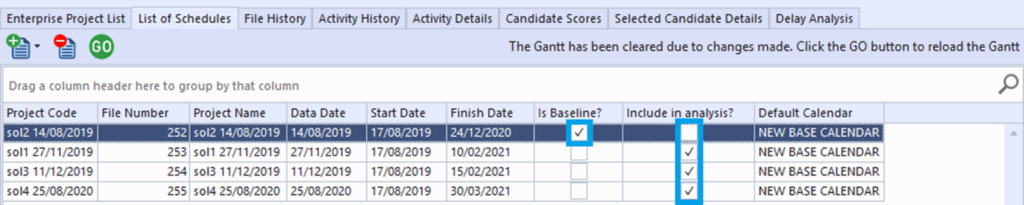
💡Whenever you change the baseline or schedule files to be included in analysis, you need to Load schedule files for analysis. Remember to click ‘GO‘ to reload the files into the Schedule Viewer.
Load schedule files for analysis #
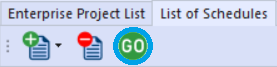
Whenever you change the baseline or file to be included in analysis, the Scheduler Viewer will be cleared. The ‘GO‘ button needs to be clicked to reload the files and perform necessary calculations to support activities in Logic+.
➡️ Navigation: Bottom tab bar > List of Schedules
👉 Click ‘GO‘ to reload Gantt based on file selections
Add schedule files or folders #
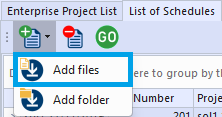
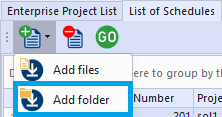
Add new files or an entire folder to your Logic+ project.
➡️ Navigation: Bottom tab bar > List of Schedules > Add files
➡️ Navigation: Bottom tab bar > List of Schedules > Add folder
💡Schedule files can also be added used from the top menu File > Add Schedule.
Remove schedule files #
Remove schedule file from the project and the database.
➡️ Navigation: Bottom tab bar > List of Schedules > Delete schedule files
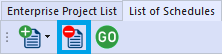
💡Schedule files can also be removed from the top menu File > Remove Schedule.
