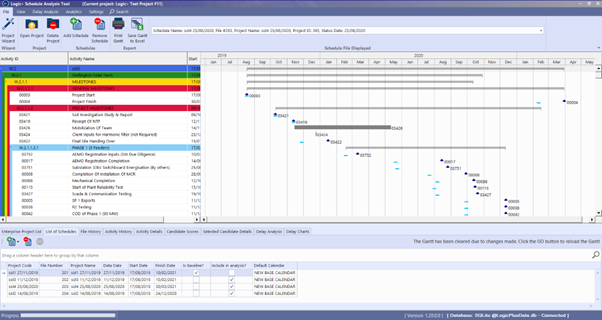
Project Wizard #
The Project Wizard is a quick way to start using Logic+ and steps you through the process of uploading project schedules and selecting a baseline file.
➡️ Navigation: File > Project Wizard
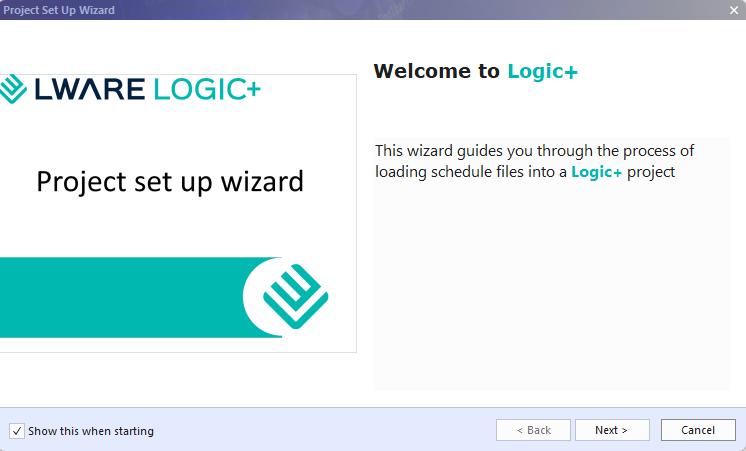
👉Select Project Wizard from the File menu
👉Click Next
Name Project #
👉Enter Project Name
👉Click Next
Provide the name of your project, if you have multiple schedules for the same project that you would like to keep separate, coordinate a naming convention that aligns to the same project but allows for sections of the schedule files for that project to be referenced.
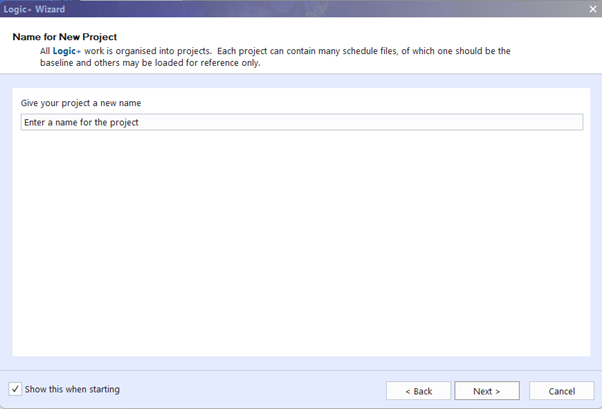
💡You can adopt your Enterprise Project Structure (EPS) to align with your schedule management processes. This is not a hierarchy within Logic+ but you can represent the EPS using a text string. Eg., Infrastructure.Water.Richmond.
Select schedule file and baseline #
👉 Select Add Files to select and add schedule files and folders.
👉Select Baseline to nominate the Baseline file. You can also do this later if you are not sure which file is the baseline.
👉Select Next: Logic+ will begin to load your schedule files.
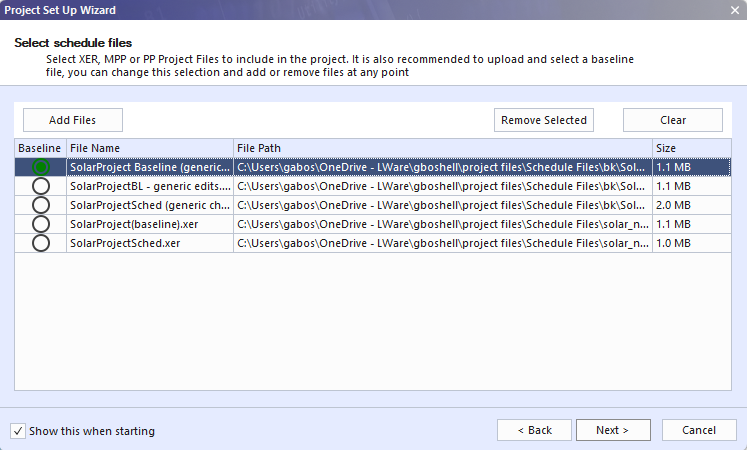
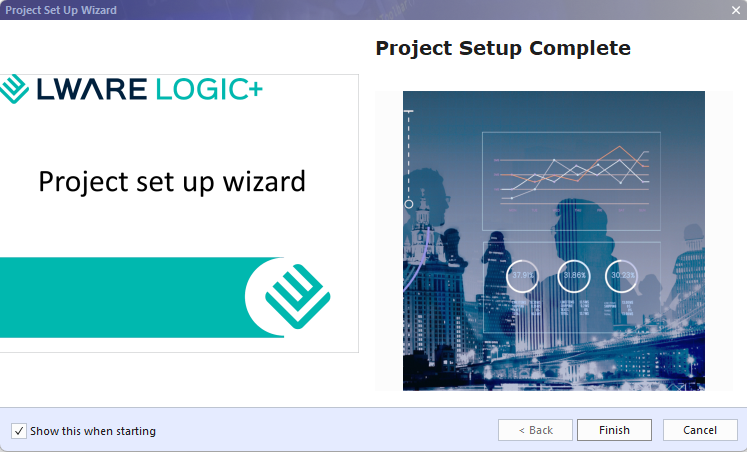
👉Select Finish: You can start viewing and analysing your schedule files.
Schedule Viewer #
Logic+ Schedule Viewer landing page is displayed upon the completed upload of all Project schedule files.