
When using planning software, it can be difficult to identify the critical path within completed or as-built activities. To address this, Logic+ was developed – leveraging advanced logic to automate the determination of the critical path and provide essential inputs for delay analysis.
This functionality is designed to support commercial managers, project managers, planners, and delay analysts by:
- Automating the identification of the critical path.
- Attributing delays or acceleration directly to project timelines.
- Providing visualisations and analytics that:
- Illustrate the cumulative impact of change.
- Highlight activity-level attributes that contribute to schedule variations.
Traceback #
A key feature within Logic+ is the Traceback. This feature is used to generate and analyse the critical path from the schedule files that have been loaded.
How the Traceback determines the Critical Path
In any project, there are many factors at play that ultimately determine the critical path. These factors can be represented in schedule files as logical links such as finish to start relationships between activities or known relationships represented by logic lines. There can also be implied relationships between data such as the same resource being used between activities or activities that move by similar durations between schedule files.
To interrogate and accurately determine a critical path would require being able to look at all the different activities and all the relationships to then determine the best predecessor.
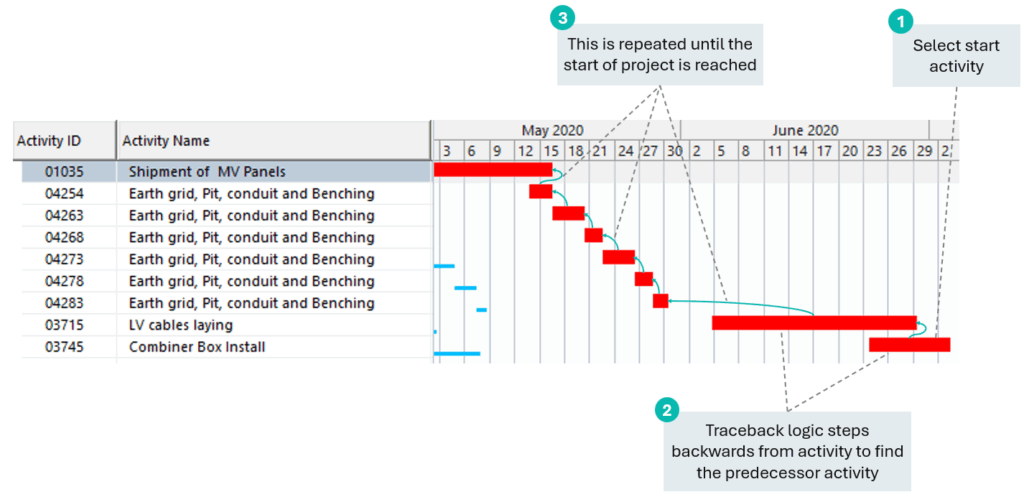
Logic+ achieves this by performing a traceback to determine the critical path.
When a schedule file is loaded, all the activities are given a candidate score which is calculated based on the defined relationships in the schedule file as well as implied relationships of 15 key attributes. Then when an activity is selected and the traceback run, the highest rated candidate score will be used to determine the activities predecessor. The traceback then finds the best candidate score activity for the processor found and continues until the start of the schedule.
💡To start using any of the Delay Analysis features, run a Traceback (Delay Analysis > Start Traceback).
Delay Analysis Feature Overview #
Key Features #
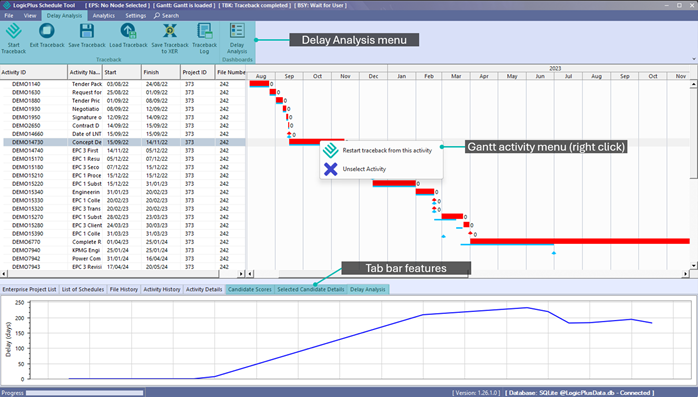
Key features of Delay Analysis include:
- Delay Analysis Menu Options: Access the Traceback features including Start/Exit/Save/Load/XER export; view the traceback log and access the Delay Analysis Dashboard
- Candidate Scores (tab): Shows the traceback logic scoring that resulted in the activity being selected on the critical path as well as the scoring for the alternate candidates.
- Selected Candidate Details (tab): Shows the details of a selected candidate when analysing a trace.
- Delay Analysis Chart (tab): Displays an interactive timeline (x-axis) against cumulative delay impact (y-axis).
- Delay Analysis Dashboard: Project Schedule Delay Analysis dashboard shows activity details, delay attributes and impact on project schedule.
- Traceback Settings: Weighting and options to control how the traceback logic determines the critical path, activity exclusion options and XER export preferences.
💡The tabs Candidate Scores, Selected Candidate Details, Delay Analysis Chart and Delay Analysis Dashboard display details that relate to the Traceback function. They will not contain any details if the Traceback has not been run.
Delay Analysis Menu Options #
Traceback: #
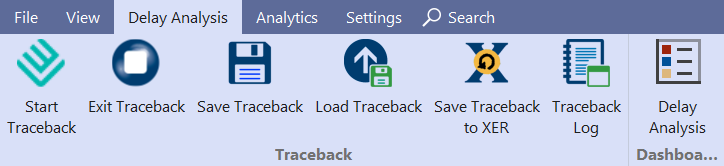
- Start Traceback: Select to start a traceback.
- Exit Traceback: Select to exit current traceback and load a new project or restart traceback for current project.
- Save Traceback: Saves the traceback session. Allows you to continue analysis from the same point in the future.
- Load Traceback: Loads traceback sessions previously saved.
- Save Traceback to XER: Saves traceback critical path to .XER format which can be imported into P6 for further analysis including what-if scenario analysis.
- Traceback Log: Exports traceback details to HTML file.
➡️ Navigation: All the above options are access from the Delay Analysis top menu bar
💡Save Traceback to XER options are controlled under Traceback Settings (Settings > Settings > Exporting Tracebacks)
Details about how to run a Traceback are outlined within the “Traceback” Section of the Logic+ Product Guide.
Delay Analysis Chart: #
Delay Analysis Chart: Displays an interactive timeline (x-axis) against cumulative delay impact (y-axis).
➡️ Navigation: Bottom tab panel > Delay Analysis
Delay Analysis Dashboard: #
Delay Analysis: Project Schedule Delay Analysis dashboard shows activity details, delay attributes and impact on project schedule.
➡️ Navigation: Delay Analysis > Delay Analysis
Traceback settings: #
Traceback settings: control how the traceback logic determines the critical path.
➡️ Navigation: Settings > Settings > Traceback.
Details of Traceback Settings are outlined within the “Settings” Section of the Logic+ Product Guide.
